Pages

Showing posts with label convenience. Show all posts

Wednesday, August 17, 2016

Edwiser Single Sign On (SSO) extension to access Moodle and WordPress

Two Doors by Stefan W.
Licensing: Creative Commons,
Attribution 2.0 Generic (CC BY 2.0)
http://goo.gl/sVgWXa
This is the second post in a series of five posts featuring the Edwiser Bridge and its four extensions. To re-cap, these WordPress plugins allow you to integrate Moodle with WordPress. In today's post I will focus on the Edwiser Single Sign On Extension which is a commercial plugin.

Image 1. The SSO extension icon.

This extension is an integral component in an e-Commerce system that comprises of Moodle, WordPress and WooCommerce. It works in tandem with the other compnents to create synergy in your system.


Section I. Overview

Image 2. The Big Picture. Where 
the SSO extension fits in.

What is the Single Sign On?
Single sign-on (SSO) is a session and user authentication service that allows a user to use a set of login details - name and password - to access two or more applications, in this case, WordPress and Moodle.

The Single Sign On extension allows you to enter your login credentials once in Wordpress, and to be logged into both WordPress and Moodle at the same time. So with this Edwiser extension, you will be able to, from within WordPress, launch directly into a Moodle site without having to go through the Moodle login page. This extension, used in tandem with Edwiser Bridge and the other three extensions, produce operational synergy for your website.

Tuesday, May 19, 2015

How to view Microsoft Documents on your Moodle site the JQuery way (Part 1)

Microsoft Store. That's a nice logo. Source: http://en.wikipedia.org/wiki/Microsoft

Disclaimer: For Microsoft Office files (Word, Excel, PowerPoint) this only works with  files that are available publicly via a public URL. It won't work for Ms Office documents that are added to a Moodle course as a resource.

Ever since I started using Moodle as a file repository for the teachers and lecturers at my work place, I had always wanted to view Microsoft Word, Excel and PowerPoint files easily on my Moodle site. The easier and faster, the better. You know the story.


Figure 1. Many thanks to Davo Smith and others for
the time-saving drag-and-drop feature of Moodle!


Figure 2. What the file looks, sitting pretty on your Moodle coursepage.


Figure 3. Click on the Ms Word file, and Google
Chrome instantly downloads it. So this means I need to run Microsoft Office to view the file's contents.
Fine and good. Everyone does this. But what if I just wanted to view the file without any fuss?

Figure 4. Using Internet Explorer to access and download the Moodle file resource
invokes a Window prompt like this. Clicking on "Open" gives you...
Figure 5. ..this! You will need at least another two
mouse-clicks before you get to view the file.

So after uploading a Word file to your course page by dragging and dropping, each time you click on the file, depending on which browser you use, the file either gets downloaded instantly or you are prompted to either open the file or download the file. Why can't I just view the file there and then without having to invoke Microsoft Office ?

Wednesday, April 22, 2015

How to add the username as an extra column in the "Browse list of users" table in Moodle

Source: http://upload.wikimedia.org/wikipedia/commons/f/f6/NavigationPopups_Usernames-10.png

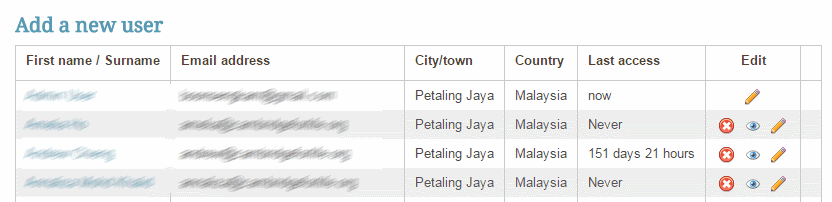
By default, Moodle does not display the user's username as on of the columns in the "Browse list of users" list. See the image below. This is for privacy reasons.


However, there can be times when it is needful for the Moodle administrator to have the usernames appear. For example, the administrator could make it mandatory for all usernames to be the same as the user's corporate or institute E-mail address. And the administrator would like to verify that this rule has been adhered to.

I was surfing for a way to do this for my Moodle 2.7 production site, when I stumbled upon this post in Moodle.org. At the end of this post, you will be able to add the username as an extra column in the Browse list of users list.

Here's how you do it.

Ratings and Recommendations by outbrain