Pages

Showing posts with label user interface. Show all posts

Tuesday, May 19, 2015

How to view Microsoft Documents on your Moodle site the JQuery way (Part 1)

Microsoft Store. That's a nice logo. Source: http://en.wikipedia.org/wiki/Microsoft

Disclaimer: For Microsoft Office files (Word, Excel, PowerPoint) this only works with  files that are available publicly via a public URL. It won't work for Ms Office documents that are added to a Moodle course as a resource.

Ever since I started using Moodle as a file repository for the teachers and lecturers at my work place, I had always wanted to view Microsoft Word, Excel and PowerPoint files easily on my Moodle site. The easier and faster, the better. You know the story.


Figure 1. Many thanks to Davo Smith and others for
the time-saving drag-and-drop feature of Moodle!


Figure 2. What the file looks, sitting pretty on your Moodle coursepage.


Figure 3. Click on the Ms Word file, and Google
Chrome instantly downloads it. So this means I need to run Microsoft Office to view the file's contents.
Fine and good. Everyone does this. But what if I just wanted to view the file without any fuss?

Figure 4. Using Internet Explorer to access and download the Moodle file resource
invokes a Window prompt like this. Clicking on "Open" gives you...
Figure 5. ..this! You will need at least another two
mouse-clicks before you get to view the file.

So after uploading a Word file to your course page by dragging and dropping, each time you click on the file, depending on which browser you use, the file either gets downloaded instantly or you are prompted to either open the file or download the file. Why can't I just view the file there and then without having to invoke Microsoft Office ?

Thursday, April 30, 2015

How to selectively hide individual files that are contained inside a Moodle folder resource


Pixabay. License: CC0 Public Domain.
Free for commercial use / No attribution required


Does the structure below look familiar to you? Have you ever used a Folder resource in Moodle? If you have then you will know that you can hide an entire folder by restricting access. However, you cannot selectively hide and show different files within the folder.


Can you hide just the file named GA01 Ver1.0 Service Tracking Form.pdf from the tree? I think not!

In Moodle 2.7.2 until Moodle 2.8.5, you are not able to hide from view, an individual file that is put inside a Moodle folder resource. However, I needed to to this. Desperately. Thus I sought to find the answers on Moodle.org. Alas, no one had come up with an answer. Only questions.  I threw myself into the work with gusto. After four days, I had cracked the problem. I am sharing my solution in this post. 

The Learning Outcome of this post is you will know how to hide from a user, individual files inside a Moodle folder.

Wednesday, April 29, 2015

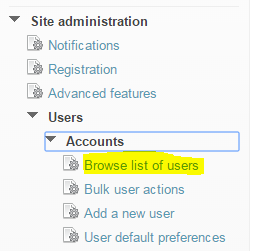
How to display more than the default 30 users in "Browse List of Users" in Moodle


When you do browse the list of users in Moodle, the users will be displayed in groups of 30 by default.


If you wish, yu can increase this by hacking the numeric value inside /admin/user.php like so:


Hope you find this hack useful. Many thanks to Mark Sharp for his tip in this post on moodle.org.

Cheers,
Frankie Kam

Sunday, July 28, 2013

Making the Moodle User Interface Look Good

Cartoon by: Hugh McCloud

This post is dedicated to great resources on the Net on how to make your Moodle site look good.
I start off with an excellent post by Smarter Made Designs. Below is a PDF iframe embed of their article entitled  "Make Moodle Look Good using HTML- Quick Guide PDF".

Friday, November 30, 2012

'Upgrade' your Moodle 1.9 standard icons to Moodle 2.4 without really trying

Here's a cheeky little post.

Tired of how dated your Moodle 1.9 resource and activity icons look? Aren't those icons so 2004? Hold on a second. What year are we in? 2012! Tired of getting information overload everytime you hit that "Turn Editing On" button? Despair no more. Now you can give your Moodle 1.9's site a new 'makeover' without converting the entire site to Moodle 2.4!

In case you didn't know, Moodle 2.4 comes with a new icon set, professionally designed by Barbara Ramiro, a talented and prolific Graphic Designer. Thanks Barbara! The new look is fresher and more modern. Check out the new set in this PDF file on moodle.org: http://docs.moodle.org/dev/images_dev/e/e8/Moodle_icons_24.pdf
Isn't that simply mouth-watering?

And then there's this site that juxtopositions Moodle 2.3 and Moodle 2.4 icons so that you can compare the old and the new: http://docs.moodle.org/dev/2.3_icons_versus_2.4

Well, the other I was admiring the new icon set when it hit me that I could 'upgrade' my Moodle 1.9 standard icons for some of the new Moodle 2.4 offerings, all without too much effort. Here's the result.


The new editing icons are now less distracting. The new icons are fresher and have replaced the original dated icons. The result? Enhanced usability, in my humble opinion.

How did I do it? It's simple. Just go to the demo Moodle 2.4 site at http://qa.moodle.net/ and then right-click on any icon and save it to your harddrive. It'll be a svg format. Use any image editor and convert the icon into gif format. Then replace your Moodle 1.9 icon by ftp'ing the new gif file into the appropriate folder of your Moodle 1.9 activity or resource. For example, the icon for the standard forum in Moodle 1.9 is /mod/forum/icon.gif. So just drop the new icon.gif file into that directory and your site is good to go!

Here's what my Moodle coursepage looks like with Settings set to off.


So what do you think of my Moodle 1.9's user interface icons makeover? Does it improve the usability of the site? Does it enhance the user interface? If you want a copy of my gif'fed icons, just send me an E-mail request. No charge.

Until the next time amigos and senoritas. keep Moodlin'
Frankie Kam


Ratings and Recommendations by outbrain