Pages

Showing posts with label GUI. Show all posts

Friday, September 16, 2016

Easily enroll multiple students on WordPress into your purchased Moodle course with the Edwiser Bridge-Bulk Purchase extension

Bulk Purchase. Credit: Alexas_Photos.
Source: http://goo.gl/0T7ajs
Welcome to my fifth and last post in a series of five posts featuring the Edwiser Bridge and its four extensions. Today I will focus on the Edwiser Bulk Purchase Extension, which is a commercial plugin. The best thing about this plugin is that you can now let your administrator or manager purchase more than one quantity of a Moodle course in a single transaction. If that's not good enough, the extension allows the Instructor or Manager to enroll himself and others to the purchased course!
Screen 1. The Edwiser Bulk
Purchase Extension icon.

So, in short, this extension allows instructors, parents, managers or corporate trainers to purchase a Moodle course on behalf of others, and then enroll them. This extension will save you effort and time. Please note this extension requires the WooCommerce Integration extension to be installed first.

Section 1. Overview

Screen 2. The Big Picture.
Where the Bulk Purchase Extension fits in the E-Commerce system.

How useful is this extension? VERY! Imagine that you are an Administrator who is given the responsibility of purchasing a Moodle course online. You have ten (10) students to enroll into the course that costs USD100 per person. Which would you prefer? To pay USD100 once for every student that you enroll - which means you have to repeat the online payment and enrollment process TEN times? Or to pay USD100 x 10 = USD1,000 once, and enter all ten students' account data, and then have all TEN students' Moodle account created automatically?

Obviously the latter as it saves you time and effort. With Edwiser's Bulk Purchase Extension, you can make a bulk online payment for a course for multiple students. and have those students login into Moodle and start off the course. With the extension this is an almost painless process and a breeze to use.


Tuesday, September 6, 2016

Integrate WooCommerce with Edwiser Bridge to sell your Moodle courses online by using the Edwiser WooCommerce Integration extension

To get POWER, you have to
CONNECT ALL the parts!
So you've got your Moodle site integrated with WordPress using the Edwiser Bridge, and the Edwiser Single Sign On and Selective Synchronization extensions. What's next? How about integrating with WooCommerce?

Edwiser WooCommerce Integration
extension logo

Section I: Overview

The WooCommerce Moodle Integration allows you to sell courses, synchronised by Edwiser Bridge, using WooCommerce. This will leverage on WooCommerce's strengths of e-Commerce functionality and it will allow you to sell multiple courses as bundled products without the need of an additional extension.

This post is Part 4 in the series of Edwiser Bridge and its extensions. Here is the Big Picture that shows where this extension fits in:


Section II: Pre-requisites

This post assume that you have already successfully purchased, installed the WooCommerce Integration extension and activated its license key.

Screen 1. License key information.


Friday, November 27, 2015

View PDF files in a ShadowBox pop-up window in the Essential Theme on your Moodle 3.0 site (works on all other themes as well!)

Source: Jens Peter Olesen,
Pixabay, CC0 Public Domain
Design. It's all about design. Today's post is  a sequel to my earlier post on the same subject. In that post, I enabled my PDF and ODF files to open in a Lightbox-like window, when clicked upon, in three themes: Evolve-D, Academi and BCU. I had used FancyBox and ViewerJS to achieve this. I couldn't get Fancybox to work with other themes.

The great news is that I have since discovered that ShadowBox (in place of FancyBox) works on Essential and Moodle 3.2's Boost theme. The installation is much easier, and I managed to optimise the look and feel of ShadowBox by tweaking its original CSS file.

Important Disclaimer and warning:
If you find that your Moodle version and Moodle theme causes your PDF file to load v-e-r-y slowly, or if your Google Chrome displays the "Out of memory" or "Aw snap" message,  then try using the FancyBox method that I blogged here instead.

Learning Outcome
At the end of this post, you will be able to hack your beloved and sacred Moodle site so that PDF files will open as pop-ups. That's all. Nothing earth-shattering. However, I strongly believe that my post today is going to touch lives and make a difference in your Moodle experience (XP). As well as your teachers' and students' Moodle XP. Read on!

Saturday, November 14, 2015

How to install the multi-platform PDF pop-up window on your Moodle 2.9.x/3.0 site.

Pop up! Source: Pixabay,
License: CC0 Public Domain;
See https://goo.gl/lAIF8x


Welcome to my Dummies' Guide for the Complete Dummy!

This guide will show you how to enable your Moodle 2.9 site so that if you click on a PDF file resource, a lighbox-like pop-up window will open. I made mention of this 'innovation' here.

A dumbed-down version of this guide is called the Idiot's Guide. But I haven't gotten down to doing it yet because I'm not a complete idiot. Yet.


I crafted this Guide because I am afraid that three months from now I might forget all the steps. Thus the Dummy is I. This guide is insanely populated with screenshots because it is a step-by-step guide for, like I said, Dummies.

A Dummies' Guide should be simple enough for any 'Dummy' to follow. All you need to do is to follow the steps and in the end you will be rewarded. I will hold your hand all the way through.

Learning Outcomes
At the end of this Guide, you will be able to
  • install the PDF pop-up on your Moodle 2.9.x/3.0 site using one of these themes: evolve-D, BCU and Academi. Disclaimer: if you are using a different theme, I cannot guarantee that it work on your theme. I tried to get it to work on Essential, More and Clean themes. I failed. Maybe you can succeed where I failed.
  • to experience the joy of seeing your students open up PDF files as a pop-up window on Moodle, on every platform and device known to man. After this you can sit back, relax and watch Netflix.
  • to see a PDF, Text and ODF (Writer, Presentation, Calc) file open on multiple platforms in the same and consistent way. Check out the Slideshare presentation below. Drool.

Tuesday, May 5, 2015

Enable the Lightbox effect for an image hyperlink in a Label resource on your Moodle site


Photo credit: Lightbox-1 via photopin (license)

L
ightbox is a JavaScript library that displays images and videos by filling the screen, and dimming out the rest of the web page. The original JavaScript library was written by Lokesh Dhakar. The term Lightbox may also refer to other similar JavaScript libraries. Text is from: Lightbox (JavaScript) - Wikipedia, the free encyclopedia

In this post, I will show you how you can enable Lightbox for an image hyperlink in a Label resource on your Moodle site. The genesis of this post was the Blog Learning Rocks. Dan Roddy has written an average of one blog post a year for the last two years, and seven posts a year for the last six years. Which is not much, but this 2010 post of his has become my inspiration for today's post. In fact, thanks to Dan's post, I've also managed to enable the Lightbox effect on image files inside a Moodle folder resource! More on that later in another post on Moodurian.

Well, let's get started shall we?
Step 1: Surf to Dynamic Drive's Lightbox image viewer page.
Step 2: Download the file lightbox.zip
Step 3: Extract the contents of the lightbox.zip to your hard drive. You will see the folder named "lightbox" and its contents below:

Figure 1. Contents of lightbox.zip

Friday, May 1, 2015

A minimalist design approach to the Restricted Access resource as displayed on a Moodle course page.


Source: http://upload.wikimedia.org/wikipedia/commons/0/07/Taiwanese_Monk_at_the_Salar_of_Uyuni,_Bolivia.jpg
Note the clean whitespace around the monk? Very minimalistic, Zen-like and serene if you ask me.


Below is a file resource that has its Restrict Access settings set. It is grayed-out so that the user knows it is a conditional resource, and the critieria for its access is clear to all.
The displayed text "Not available unless: Your category is hq" means that the user cannot access (read) the resource unless his Custom Profile has been set to "hq". It serves a vital purpose and is useful when a student needs to be informed that a criteria needs to be met or score needs to be attained before he or she is allowed to access that resource.

In my humble opinion, I find the conditional text as intrusive to design of the course page. It does stick out and the eye cannot avoid it. I also think that sometimes the conditional text is redundant and would be better if it were not visible. For example, in the business context, some files may be made inaccessible to a user because the user is unconfirmed. He or she is still on probation. Hence, the Moodle administrator may want the staff to not click and access the resource, but only see the resource as being there on the course page.

The purpose of this post is to show you how to remove the conditional text. At the end of this post, your home will look like this:


Looks like that famous photo of Steve Jobs in his home with minimalistic furniture.
Photo by Benjamin Stockwell. Source: https://www.flickr.com/photos/kingbenny/5186217964/
License is Creative Commons Attribution, non-commercial use.

Okay, now seriously,  At the end of this post, your screens will looks like this:

How would you like to view a Moodle Quiz's Summary Of Attempt table in multiple column format instead of one long list

Source: http://en.wikipedia.org/wiki/Dead_Sea_Scrolls

This post is seventeen (17!) months in the making. Back then I was using Moodle 2.5. It took so long to do because back in November 2013, I was faced with the challenge of redesigning the Summary of Attempt table, but was easily defeated by the complexity of the quiz's renderer.php code.  Ah! Such is the agony of defeat. I found it too difficult to solve, so I left it by the wayside - only to re-attempt the problem in April 2015. You might say that the idea was gestating all this time. By the time I had the solution, which was on 29th April 2015, Moodle had evolved into Moodle 2.8.5. The feeling of the thrill of success is indescribable. Something to be savoured.

At the end of this post, you will be able to have your Moodle quiz display the "Summary of Attempt" in a whole new way, without the usual "scroll of death".

By default, the Summary Of Attempt table in a Moodle Quiz will display as a single column. So a quiz of 50 quiz questions will result in table that extends for most of the screen's height. Here's what my summary looks like with a quiz of 20 questions.

In the example above, I have to scroll all the way down to access and to click the "Submit all and Finish' or 'Return to attempt' buttons. Here's what the table looks like with 49 quiz questions!


Yikes! A long list is generated and I had to scroll all the way down the screen in order to click the "Submit all and finish" button. Now what happens when you have a quiz that consists of 60, 70, 80 or even 100 questions? Think about it.

Hmm.....now then...

Source: http://upload.wikimedia.org/wikipedia/en/d/d9/Thinking.jpg


...WHAT IF the table could be redesigned like the one below?


Firstly, the table is now divided into 3 separate columns. The questions snake up-down-and-left-to-right in fashion.  The question numbers are automatically and dynamically generated in their respective columns . In addition, the status of all unanswered questions are shown as red text so that the user has a instant visual cue.

Wednesday, April 22, 2015

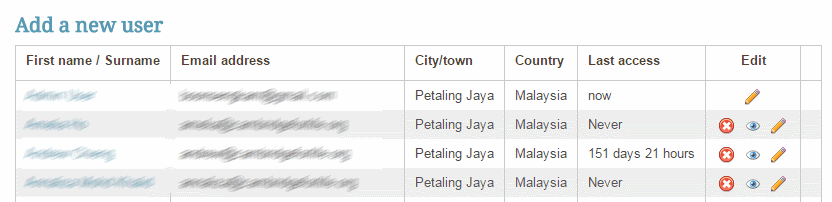
How to add the username as an extra column in the "Browse list of users" table in Moodle

Source: http://upload.wikimedia.org/wikipedia/commons/f/f6/NavigationPopups_Usernames-10.png

By default, Moodle does not display the user's username as on of the columns in the "Browse list of users" list. See the image below. This is for privacy reasons.


However, there can be times when it is needful for the Moodle administrator to have the usernames appear. For example, the administrator could make it mandatory for all usernames to be the same as the user's corporate or institute E-mail address. And the administrator would like to verify that this rule has been adhered to.

I was surfing for a way to do this for my Moodle 2.7 production site, when I stumbled upon this post in Moodle.org. At the end of this post, you will be able to add the username as an extra column in the Browse list of users list.

Here's how you do it.

Friday, October 10, 2014

Wall for Moodle 2.x has been enhanced with easier Youtube and TED video embeds

Photo by Troy Tolley
Source: http://goo.gl/VIX5aj

Introduction
I had last blogged about the Moodle Wall here in 2013.  That was a long time ago. I recently decided to update the Wall for Moodle 2.x. So on a rainy day on 12th October 2014, I set out to make it a little bit better. Hope you like the changes that follow.

Tuesday, May 20, 2014

Soup up your Moodle Quiz with Javascript, CSS and JQuery magic (Frankie Kam, iMoot 2014, Super Session - South East Asia)

Here's my presentation at iMoot 2014. "How I enhanced the look and feel of the standard Moodle quiz to create a feature-rich quiz by using Javascript, CSS and a dose of JQuery".

Screenshot only.
Image shows the Main Title Screen.

This was my first iMoot. Had a hair-raising peroid when preparing my slides before the start of the online Conference (iMoot). My Moodle site's JQuery refused to work. Praise God, I managed to sort the problem only ten days before my session was due. It was a great experience presenting live to a global audience.

Screenshot only.
Me presenting live. Unplugged. With less hair on the top than Tintin,
and with more 'hair' on the sides than Princess Leia.

Here's my iMoot 2014 Video Presentation. Enjoy!


Many thanks to Wendi Kirwan-Elliott and Vinny Stocker of Pukunui for the invite. My presentation contains a visual joke at page 57. You have been warned. Total pages is 135 (only!). Note: The PowerPoint Presentation was temporarily taken offline, and is now online again. The last page of the presentation contains a Youtube demonstration of the souped up Moodle Quiz. You can view the Youtube video here: http://www.youtube.com/watch?v=57i3rhT-tKI


Presented by Frankie Kam at iMoot2014, on 18th May 2014.

The first two slides of the presentation were taken from a science-fiction movie starring Sigourney Weaver. If  you know the movie name, that would betray your age-range. :-)

Keep on Moodlin'
Frankie Kam

Friday, August 16, 2013

Spice up your Moodle 2 frontpage by displaying category names as buttons with Alicia Wallace's Renderer


The course categories are nicely laid out as
buttons with text and images.
very nice!
Alicia Wallace of the United Kingdom has created something that changes the look and feel of the frontpage. Her creation is a renderer file with a custom CSS file for Moodle 2. It is based on the Sky High standard theme for Moodle 2.x. The image above shows the renderer in action on the frontpage of Hartpury College's Moodle site.

Saturday, August 3, 2013

My first experience of FrogOS compared to Moodle - why can't we have Froodle?

Froodle.
Don't sue me.
I'm just dreamin' on.
You may say I'm a dreamer,
but I'm not the only one.

In today's post, I want to talk about my first experience of FrogOS. Previously I had only known about it from the local newspapers. And the only frogs I knew about were Frogger the Atari video game, HipHop from Cheaper By The Dozen, Kermit the Muppet, LeFrog from Flushed Away and Nanette from Gnomeo and Juliet.  I guess that you could say that I was a katak dibawah tempurung (Malay for frog beneath the coconut shell)! In Cantonese, we say mong cha cha (clueless). Now I know more about FrogOS and I want to take the opportunity to share what I know with you. But first, some background.


Friday, July 20, 2012

Add the cool MP3 Quickie Neon audio player with upload and download to your website

MP3 Quickie Neon!


Like what you see? You can demo it live here.

Features:
  • limited recoding of 20 seconds
  • uncluttered GUI with open/close sections
  • record MP3 audio of crystal-clear quality
  • playlist of server-saved MP3 files
  • upload of multiple MP3 audio files
  • download of MP3 audio files
  • tested under Google Chrome and Mozilla Firefox
  • easy to setup and to install
  • uses php, Java and Javascript

Disclaimer:

Java applet and original GUI coding by Vimas Technology Enhanced GUI (this one!) by Frankie Kam Boon Seng. If you are using this MP3 Quickie on your site, please retain the linkback logo and URL to Vimas Technology as the software is neither freeware nor open source. If you wish to overcome the 20 second recording limitation of the MP3 applet, you may purchase the full version applet from Vimas.

The MP3 Quickie is limited to 20 seconds because it harnesses Vimas Technology’s demonstration version of its Java applet. To get past the 20 second limit, you or your institution will have to come up with $400USD, plus another $300 if you don’t want to display the mandatory Vimas logo.

I do not work for Vimas Technology, but I liked the challenge of improving the GUI of their demonstration version. This is the result of my work. Feel free to contact me if you have any questions or queries.

I'd be more than happy to hear from you!

Until my next post, happy Moodling!
Frankie Kam


Friday, April 20, 2012

A Moodle Sensation! Real-Time Drag and Share Collaboration Tool by Felix Albertos Marco

A new Collaboration Tool named Drag-And-share.
It's revolutionary and ground-breaking to say the least!


1. Drag a file (text file, PDF, Ms word, etc.) from your desktop to the workspace
2. Drag a file icon from the workspace to the magnifying glass to view the file's contents
3. In some cases (e.g., a Ms word file), Action #2 results in the file being downloaded!
4. Double click on the workspace to create a new text file. Enter its title, text and save it.
5. To view the text file, drag the text file to the Magnifying glass icon.
6. Oh by the way, when two or more users are online at the same time, you will see the other user's mouse point move in real-time. They will see your mouse pointer move as well! 
So this is a Collaboration Tool - prototype version. The later version is touted to be more powerful and more robust! For more information, go to this forum on Moodle.org or to Moodlenews.com.
Watch this video. 

Friday, March 23, 2012

Taking MP3 Quickie Version 2.00 Springbok to a whole new level

This post is to document my latest idea to improve the functionality of MP3 Quickie. My latest idea is to allow the creator of an MP3, to send an E-mail to another person. The E-mail address can either be typed in, or picked from a list of E-mails of course participants (provided each student has not disabled his or her E-mail address for privacy reasons). If the E-mail address is typed in, then the recipient can be anyone whom the sender knows. Here's a prototype image of what the Quickie can look like in the near future:


A pick list is displayed. It that allows the user to select the E-mail address from a list of course participants.

Saturday, March 10, 2012

MP3 Quickie voice recorder for Moodle matures into Version 2.00, code-named Springbok

Okay, now here's what this blog post is all about. See that beauty on the left-hand side of my Moodle site?


Ladies and gentlemen, I present to you, a modern and aesthetic voice recording tool to create MP3 files on your Moodle block. MP3 Quickie Version 2.0, code-named, Springbok. The user interface is spritely, funky, lively and fun - just like the Springbok of South Africa.

Sunday, December 4, 2011

Nadav's HTMLAREA Toolbar Extentions

I just spent the larger part of my weekend extending my Moodle 1.9.14's HTMLArea Toolbar. Many thanks to the prolific and brilliant Nadav Kavalerchik. See the moodle.org plugin page.


Hadav's work is amazing!. He has increased the pedagogical value of Moodle right from the Editor itself.

For me the most useful plugins that has has added to the Moodle editor functionality are:
1. Drag and Drop image adder (a must-have for any Moodle site! Previously only the admin or teacher could add images to the editor. Students could only insert images by giving the URL)
2. Insert PDF (no more having to figure out the HTML embed codes)

3. VideoRecorder (FANTASTIC. Thanks for Kevin Brake (and Vimas Technology)!)

Friday, September 16, 2011

MP3 Quickie Makeover - a skinnable Version 1.8

Here's what MP3 Quickie looks like now after a Graphical User Interface makeover.
Funkier, if you asked me. It comes in two flavours.

Flavor 1: with PHP File Uploader (commercial uploader with 30-day demo)


Figure 1: With PHP File Uploader.


Ratings and Recommendations by outbrain