This post is about POODLL. Well sort of, because my post is obviously incomplete. I've copied inside this blog post, the contents of the POODLL filter settings of my Moodle 2.5 site. Why did I do this? Well it's simple. I finally managed to get POODLL working on my site, and I wanted to preserve the filter settings so that I can refer to them in future. You never know. When I get more time to blog about how I installed POODLL on my site, I will fill in more details.
Showing posts with label video. Show all posts
Monday, June 24, 2013
Fun with PoodLL and Moodle 2.5+ (Part 1) - recording audio and video
This post is about POODLL. Well sort of, because my post is obviously incomplete. I've copied inside this blog post, the contents of the POODLL filter settings of my Moodle 2.5 site. Why did I do this? Well it's simple. I finally managed to get POODLL working on my site, and I wanted to preserve the filter settings so that I can refer to them in future. You never know. When I get more time to blog about how I installed POODLL on my site, I will fill in more details.
Labels:
audio,
english,
esl,
flowplayer,
justin hunt,
lab,
language,
mp3,
poodll,
recorder,
recording,
video
Friday, May 31, 2013
The Youtube Anywhere Plugin - thanks to Justin Hunt, Joseph Thibault and the Community!
This is one cool Moodle plugin for Moodle 2.4 and above
Today's post is on the ultra-cool tinyMCE Youtube Anywhere plugin. It allows you record a webcam video from within the TinyMCE HTML editor, and upload the resulting video direct into YouTube. Many thanks to Justin Hunt, Joseph Thibault, this Moodlenews post that got the ball rolling and the Moodle (and non-Moodle) community of contributors!
I installed in on my Moodle 2.5 site, and I would like to share some screenshots for those of you who wish to do the same. Hopefully I will succeed in whetting your appetite to have this marvelous plugin working on your site as!
Today's post is not a complete step-by-step installation guide. Here are some screenshots of the process involved to setup the plugin on your Moodle 2.4 or 2.5 site.
Main Moodle.org Youtube Anywhere plugin webpage - maintained by Justin Hunt
https://moodle.org/plugins/view.php?plugin=tinymce_youtube
The installation process consists mainly of these getting the below data (keys, ids and google codes).
YouTube Developers Key
Get a YouTube Developers Key from the instructions found here:
https://code.google.com/apis/youtube/dashboard
Google OAUTH client id and OAUTH secret
Get the Google OAUTH client id and OAUTH secret from the instructions from here:
From http://docs.moodle.org/24/en/Google_OAuth_2.0_setup
For more detailed information on how to create the client id and OAUTH secret codes, you can refer to this installation PDF file by Justin.
YouTube Anywhere settings
Possible alert notification from Google
I received this message because the Moodle plugin was trying to access my Goodle account. Hence I had to allow Google to recognise the server's IP address from which the request came from. I merely clicked on the http://support.google.com/mail?p=client_login link to resolve this.
The Plugin in action
1. Once you have the plugin installed on your Moodle site, click on the YT icon in your tinyMCE editor

2. A three-tabbed display appears. Click on the "Record a Video" tab.
3. Click on the "Record from webcam" button.
4. Click the "Start Recording" button.
5. Confirm the action - click the "OK" button.
6. Record away!
7. Click the "Insert" button.
8. The link is inserted. Click the Submit button to embed your video into your webpage.
8. Checking out the Playlist tab.
9. Email notification from Youtube/Google
10. Final result on my Moodle site
Very nice. I hope that this series of screenshots will motivate you to
(1) Start using Moodle 2.4 and above
(2) Install YoutTube Anywhere on your own site
(3) Start making videos and embed them directly from within Moodle
Enjoy!
This plugin was a community effort and was funded by contributions. Power to the people! Incentive for the developers!
A list of the contributors:
Tetsuo Kimura
StraighterLine
Waleed Jameel
Richard Oelmann
Classroom Revolution, LLC
Other Contributors
Don Hinkelman
Rex Lorenzo
Jason Palmer
Daran Price
Ben Reynolds
flizotte
bessette
lindstromfredg
Julian Ridden
Roland Sherwood
Philippe Petitqueux
alfieismydog
kdc_teach1
For more information on this Crowdfunded project, click here.
Happy recording!
Frankie Kam
1st June 2013
Postscript (dated 17th October 2013)
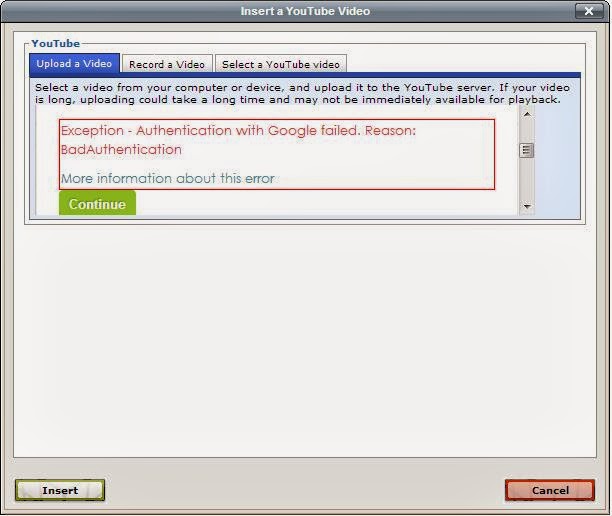
If you have enabled Google's 2-step verification for your Gmail account's password, please beware that Moodle will not be able to authenticate your account, and this is what you will see:
A dreaded message appears: "Exception - Authentication with Google failed. Reason: BadAuthentication". Clicking on the "More information about this error" leads nowhere useful.
The solution? My story is this: some months after my original post above, I enabled the 2-step verification of my Google account. Just in case it got hacked. The result? Unbeknownst to me, the Youtube Anywhere plugin could no longer be authenticated!
I was fortunate enough to discover the solution, but only after spending close to three hours(!) re-installing the plugin countless times. Initially I thought that I had broken the Youtube Anywhere code by installing too many other Moodle plugins. Then a breakthrough! In one of my Google web searches, I stumbled upon this StackOverflow post which suggested going here. Thank you Matias Molinas, whoever you are! You saved my bacon.
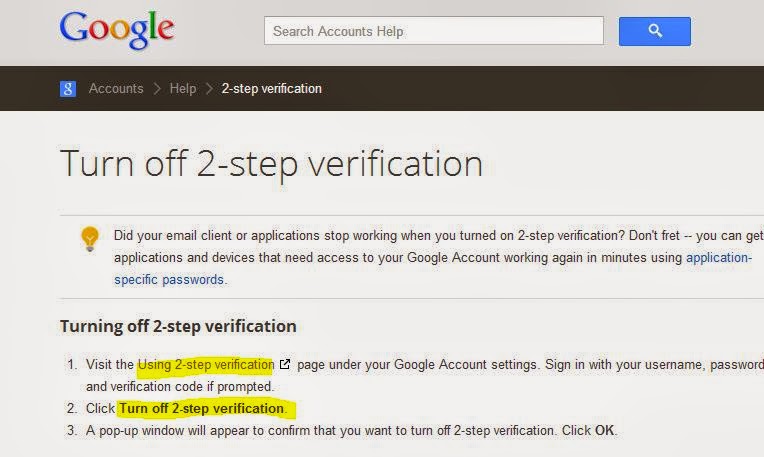
So I followed the cue and landed here:
The text reads,
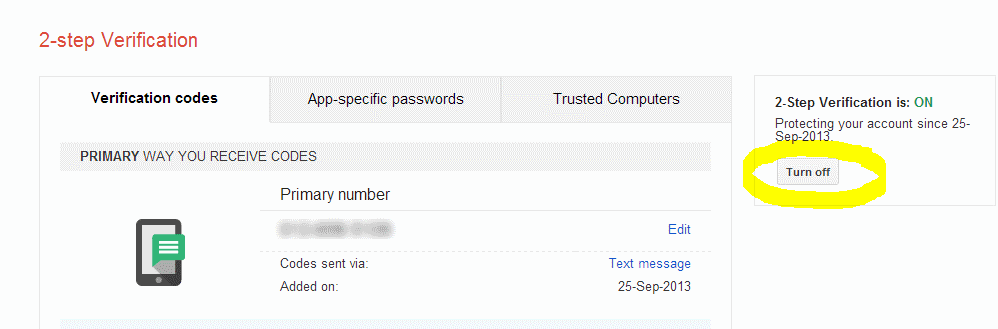
Clicking on the "Using 2-step verification" link, I landed here:
When I clicked the "Turn Off" button, I was greeted by the next screen:
Basically, Google was suggesting that I should attempt to use an "application-specific password" instead of turning off the 2-step verification method. Since I thought that Google's 2-step verification was crucial to ensuring a decent level of security for my Google and Youtube accounts, I went ahead and clicked on the "application-specific password" link. Even though I had no idea what that meant. Fortune favours the brave! After logging into my Google account, this screen appeared:
I clicked the "Generate password" button and Google generated a password for me.
What did I do with the password? Well I went back to the Youtube Anywhere plugin's settings and entered it in the "Youtube master account password" field. Like so:
Finally, I tested the plugin one more time. It worked fine!
At last it worked.
Phew! To think that I spent 3 hours trying to figure out the problem, when all the while, the solution was out there. In the end, nothing is really 'wasted' since after countless installs of the plugin, I am now, unofficially, an 'expert' in the installation process of Youtube Anywhere. Hehe. I hope this helps someone out there ... maybe you!
regards
Frankie Kam
Today's post is on the ultra-cool tinyMCE Youtube Anywhere plugin. It allows you record a webcam video from within the TinyMCE HTML editor, and upload the resulting video direct into YouTube. Many thanks to Justin Hunt, Joseph Thibault, this Moodlenews post that got the ball rolling and the Moodle (and non-Moodle) community of contributors!
I installed in on my Moodle 2.5 site, and I would like to share some screenshots for those of you who wish to do the same. Hopefully I will succeed in whetting your appetite to have this marvelous plugin working on your site as!
Main Moodle.org Youtube Anywhere plugin webpage - maintained by Justin Hunt
https://moodle.org/plugins/view.php?plugin=tinymce_youtube
The installation process consists mainly of these getting the below data (keys, ids and google codes).
YouTube Developers Key
Get a YouTube Developers Key from the instructions found here:
https://code.google.com/apis/youtube/dashboard
Google OAUTH client id and OAUTH secret
Get the Google OAUTH client id and OAUTH secret from the instructions from here:
From http://docs.moodle.org/24/en/Google_OAuth_2.0_setup
For more detailed information on how to create the client id and OAUTH secret codes, you can refer to this installation PDF file by Justin.
YouTube Anywhere settings
Possible alert notification from Google
I received this message because the Moodle plugin was trying to access my Goodle account. Hence I had to allow Google to recognise the server's IP address from which the request came from. I merely clicked on the http://support.google.com/mail?p=client_login link to resolve this.
The Plugin in action
1. Once you have the plugin installed on your Moodle site, click on the YT icon in your tinyMCE editor
2. A three-tabbed display appears. Click on the "Record a Video" tab.
3. Click on the "Record from webcam" button.
6. Record away!
7. Click the "Insert" button.
8. The link is inserted. Click the Submit button to embed your video into your webpage.
8. Checking out the Playlist tab.
9. Email notification from Youtube/Google
10. Final result on my Moodle site
Very nice. I hope that this series of screenshots will motivate you to
(1) Start using Moodle 2.4 and above
(2) Install YoutTube Anywhere on your own site
(3) Start making videos and embed them directly from within Moodle
Enjoy!
This plugin was a community effort and was funded by contributions. Power to the people! Incentive for the developers!
A list of the contributors:
Tetsuo Kimura
StraighterLine
Waleed Jameel
Richard Oelmann
Classroom Revolution, LLC
Other Contributors
Don Hinkelman
Rex Lorenzo
Jason Palmer
Daran Price
Ben Reynolds
flizotte
bessette
lindstromfredg
Julian Ridden
Roland Sherwood
Philippe Petitqueux
alfieismydog
kdc_teach1
For more information on this Crowdfunded project, click here.
Happy recording!
Frankie Kam
1st June 2013
Postscript (dated 17th October 2013)
If you have enabled Google's 2-step verification for your Gmail account's password, please beware that Moodle will not be able to authenticate your account, and this is what you will see:
A dreaded message appears: "Exception - Authentication with Google failed. Reason: BadAuthentication". Clicking on the "More information about this error" leads nowhere useful.
The solution? My story is this: some months after my original post above, I enabled the 2-step verification of my Google account. Just in case it got hacked. The result? Unbeknownst to me, the Youtube Anywhere plugin could no longer be authenticated!
I was fortunate enough to discover the solution, but only after spending close to three hours(!) re-installing the plugin countless times. Initially I thought that I had broken the Youtube Anywhere code by installing too many other Moodle plugins. Then a breakthrough! In one of my Google web searches, I stumbled upon this StackOverflow post which suggested going here. Thank you Matias Molinas, whoever you are! You saved my bacon.
So I followed the cue and landed here:
The text reads,
"If any of your customers are having trouble with ClientLogin, their account may not be compatible with it for a variety of possible reasons. For example, accounts that use 2-step verification, SAML, or Open ID are not compatible with ClientLogin.Aha! So, Google's 2-step verification has a side-effect!
One workaround is to tell users to generate a single-use password, provided by access codes, which allows them to log in to their account in a web browser and generate a long password that they can type into the password field of any application using ClientLogin...."What's this "single-use password"? Never mind. No time for that. Let's just get rid of the 2-step verification then, shall we? I want to get the plugin working again on my site. I thought that I should turn off the 2-step verification of my Google account, and I surfed here:
Clicking on the "Using 2-step verification" link, I landed here:
When I clicked the "Turn Off" button, I was greeted by the next screen:
Basically, Google was suggesting that I should attempt to use an "application-specific password" instead of turning off the 2-step verification method. Since I thought that Google's 2-step verification was crucial to ensuring a decent level of security for my Google and Youtube accounts, I went ahead and clicked on the "application-specific password" link. Even though I had no idea what that meant. Fortune favours the brave! After logging into my Google account, this screen appeared:
I clicked the "Generate password" button and Google generated a password for me.
What did I do with the password? Well I went back to the Youtube Anywhere plugin's settings and entered it in the "Youtube master account password" field. Like so:
Finally, I tested the plugin one more time. It worked fine!
At last it worked.
Phew! To think that I spent 3 hours trying to figure out the problem, when all the while, the solution was out there. In the end, nothing is really 'wasted' since after countless installs of the plugin, I am now, unofficially, an 'expert' in the installation process of Youtube Anywhere. Hehe. I hope this helps someone out there ... maybe you!
regards
Frankie Kam
Labels:
crowdsourcing,
justin hunt,
microphone,
plugin,
recording,
video,
webcam,
Youtube,
Youtube Anywhere
Thursday, January 5, 2012
What video inspires you?
Hi. Watched any inspiring videos lately?
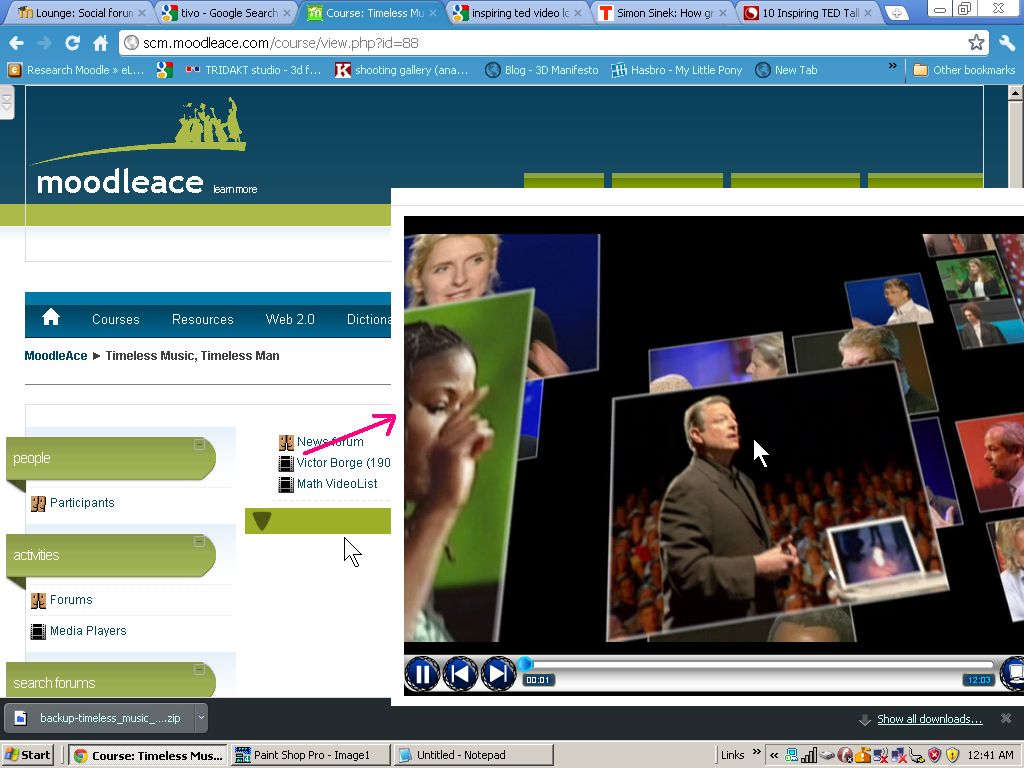
I trying to build a list of inspiring videos to share with my students. To watch them on my Moodle site, I really enjoy using Matt Bury's Media Player plugin to create a video playlist for my students to watch videos (of my choice). It's really versatile.

The playlist is created from an XML file that I edit using Windows Notepad. Here's an example of a XML playlist file. And here's another one.
Sunday, January 1, 2012
How to deshake "shaky" videos on your Moodle site with VirtualDub
So you like taking videos with your point-and-shoot camera or with your camcorder to use on your Moodle courses. What do you do about shaky videos that give you that dizzy feeling? Too much panning around, too fast. Jerky motion videos.
Look no further. You need three things. And they are all free.
1. Use Virtualdub 1.9.11
2. with the deshaker 3.0 filter
(extract the Deshaker.vdf plugin file and copy it to the plugins folder of Virtualdub)
3. and the K-Lite Codec. After installing the codec pack, your PC should be able to play 99% of all videos on the Net.
To save you the trouble, you can download my zipped version VirtualDub 1.9.11, complete with the deshaker filter inside the plugins folder, here.
How to use Virtualdub and Deshaker filter to smoothen out the jerkiness of your videos
Look no further. You need three things. And they are all free.
1. Use Virtualdub 1.9.11
2. with the deshaker 3.0 filter
(extract the Deshaker.vdf plugin file and copy it to the plugins folder of Virtualdub)
3. and the K-Lite Codec. After installing the codec pack, your PC should be able to play 99% of all videos on the Net.
To save you the trouble, you can download my zipped version VirtualDub 1.9.11, complete with the deshaker filter inside the plugins folder, here.
How to use Virtualdub and Deshaker filter to smoothen out the jerkiness of your videos
Tuesday, December 20, 2011
How to combine a FLV video and a PowerPoint presentation on the same Moodle page
There are several ways how you can combine a PowerPoint with a video on the same Moodle page.
I don't know about synchronising a PowerPoint with a video, but I can manage a 3-paned window by using 1995-technology HTML frames coupled with Xerte. Here's a demo of a prototype of what I think you are looking for, minus the synchronisation (which I have no idea how to do): http://www.moodurian.com/xerte2/index2.html
a related post is here:
http://moodurian.blogspot.com/2011/07/t-his-mashup-was-originally-posted-by.html
I don't know about synchronising a PowerPoint with a video, but I can manage a 3-paned window by using 1995-technology HTML frames coupled with Xerte. Here's a demo of a prototype of what I think you are looking for, minus the synchronisation (which I have no idea how to do): http://www.moodurian.com/xerte2/index2.html
a related post is here:
http://moodurian.blogspot.com/2011/07/t-his-mashup-was-originally-posted-by.html
The PowerPoint was transformed into a flash swf file by using ISpring free version.
Sunday, July 3, 2011
Cool Video Quiz: Mashup of Xerte and Moodle quiz
More links related to this quiz format "novelty":
1. Moodle.org forum discussing the mashup.
2. Youtube video demonstrating the mashup.
Sunday, June 5, 2011
Adding video feedback to the Assignment activity
Hi. An important element of the Moodle assignment activity is feedback from the facilitator. Do you give feedback to students inside the Assignment activity? I don't know about you, but I personally find giving feedback a chore. Especially when one is bogged down with lots of paperwork and preparation. It shouldn't be a chore since quality feedback is very important to students' learning.
By default, Moodle 1.9's feedback section of the activity is text-mode. How many of you had at one point or other had wished that you could give video feedback? Well, the good news is that Kevin Brake has created a Forum Video Recorder that works inside Moodle forums. I am also happy to announce that I have used Kevin Brake's excellent code, some sleuthing and hacking of a Moodle 1.9.7 core file to enable video feedback within the assignment activity itself.

To give video feedback, you will need to:
1. use a working webcam (obviously)
2. install Kevin Brake's excellent Forum Video Recorder. For instructions on how to use it, click here.
To know how to install it, click here.
3. have Java Runtime installed
4. have the QuickTime plugin installed. In case QuickTime gives your Wbb browser problems,
download and install QuickTime alternative
5. insert some code inside /mod/assignment/submissions.php.
To see the Moodle 1.9.7 file that I used, download the submissions.php file.
By default, Moodle 1.9's feedback section of the activity is text-mode. How many of you had at one point or other had wished that you could give video feedback? Well, the good news is that Kevin Brake has created a Forum Video Recorder that works inside Moodle forums. I am also happy to announce that I have used Kevin Brake's excellent code, some sleuthing and hacking of a Moodle 1.9.7 core file to enable video feedback within the assignment activity itself.

To give video feedback, you will need to:
1. use a working webcam (obviously)
2. install Kevin Brake's excellent Forum Video Recorder. For instructions on how to use it, click here.
To know how to install it, click here.
3. have Java Runtime installed
4. have the QuickTime plugin installed. In case QuickTime gives your Wbb browser problems,
download and install QuickTime alternative
5. insert some code inside /mod/assignment/submissions.php.
To see the Moodle 1.9.7 file that I used, download the submissions.php file.
Labels:
assignment,
feedback,
forum,
Java,
Kevin Brake,
video
Subscribe to:
Posts (Atom)